
Lab Log: Taming the Dell R730xd (The Proxmox Build)

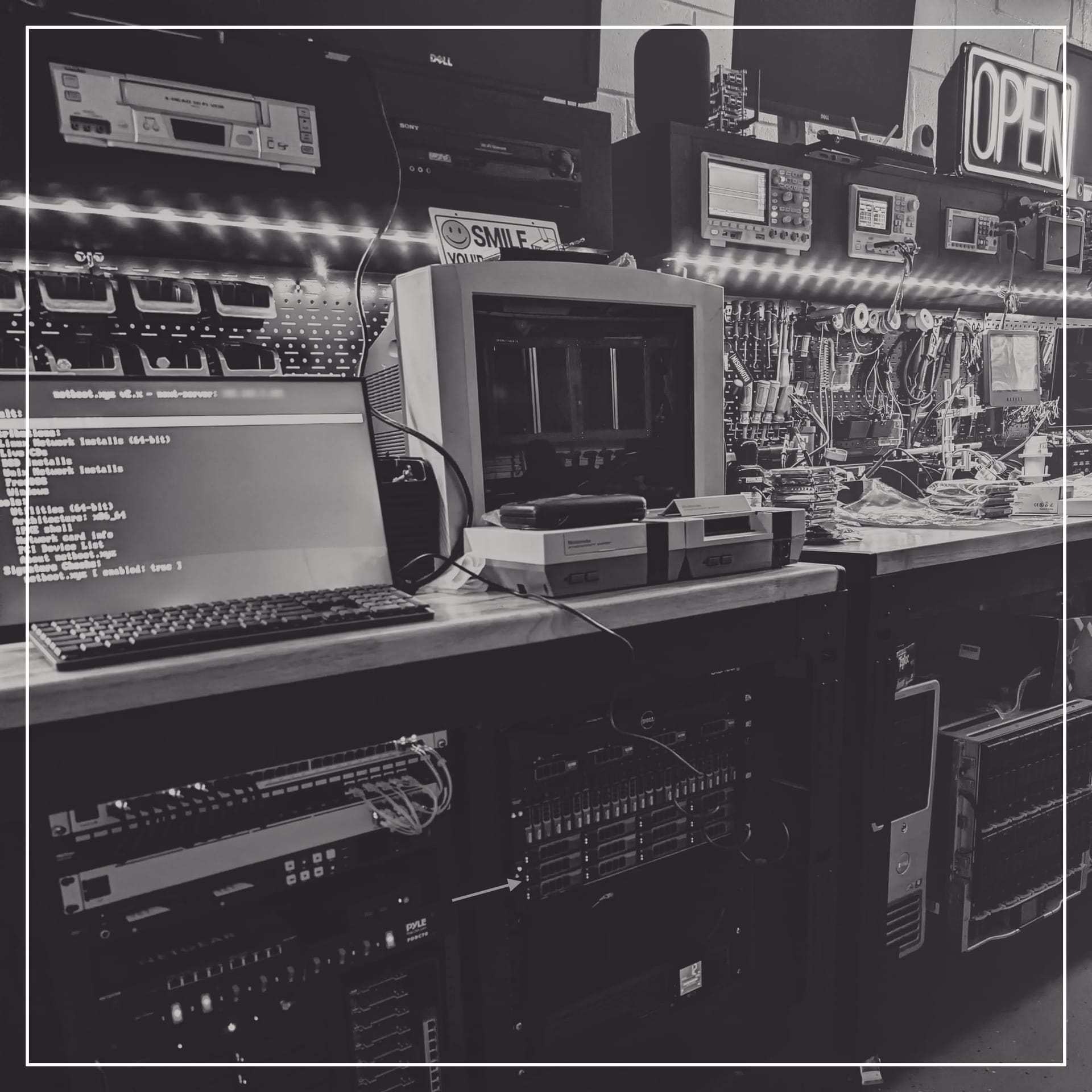
I finally pulled the trigger on the next major upgrade for the home lab: a Dell PowerEdge R730xd.
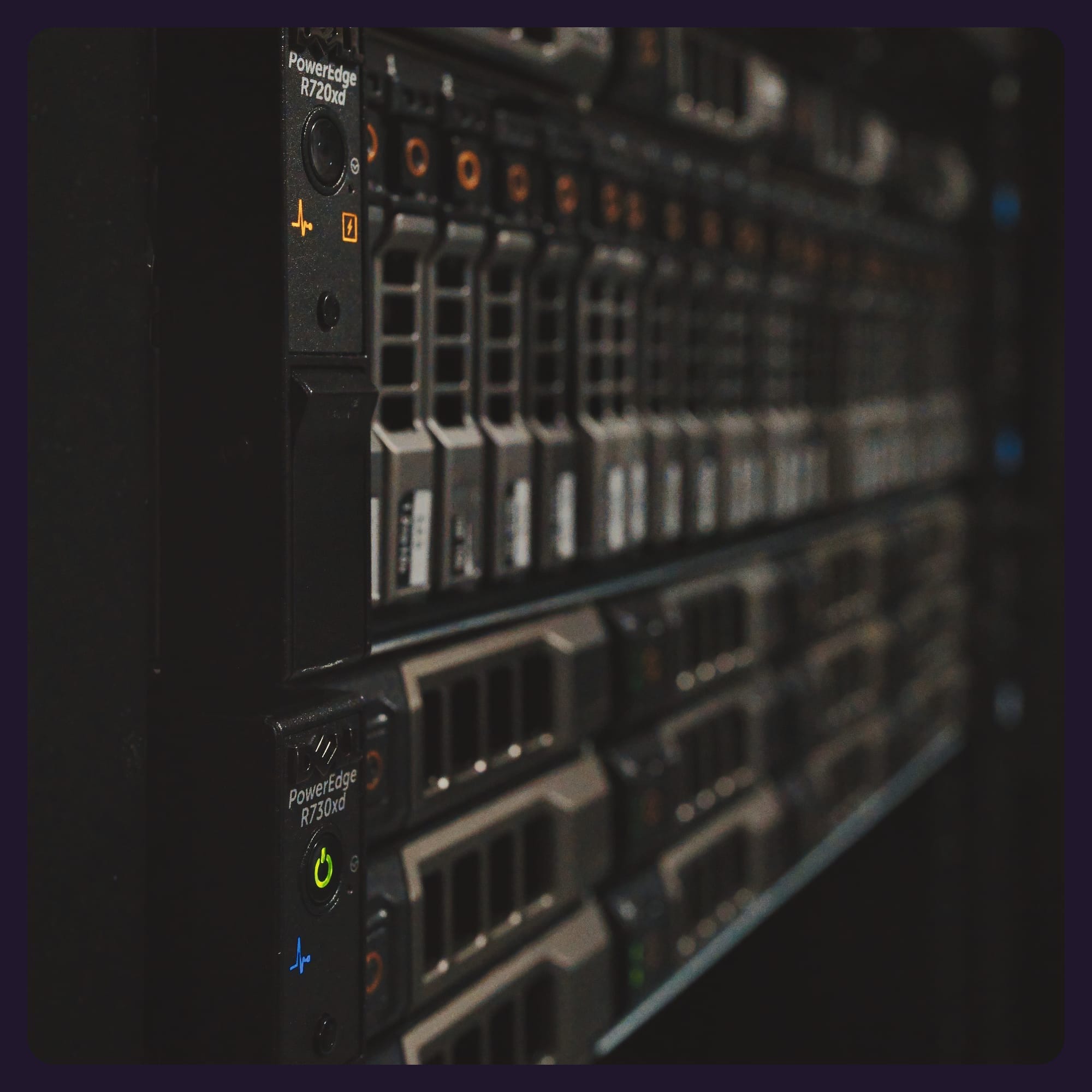
For a while, I debated how to split my compute and storage. My original plan was to run everything on my older R720xd, but as the lab grew (and my Plex requirements got heavier), I realized I needed a dedicated compute monster. The R730xd is that monster.
But before I even racked the server, I had to prep the network. I didn't want to hunt for USB drives every time I needed to reinstall an OS. I wanted a true "infrastructure as Code" feel, which meant setting up a PXE Boot server using my existing hardware.
Here is the breakdown of the prep, the build, and the absolute war I fought with UEFI networking to get Proxmox installed.
Part 1: Setting the Stage (The PXE Prep)
I decided to use netboot.xyz as my boot menu. It allows you to network boot almost any OS installer (Proxmox, Ubuntu, Debian, Rescue Tools) without downloading/burning an ISO.
Step A: The TFTP Server (Synology)
I didn't want to spin up a dedicated VM just for booting, so I leveraged my Synology NAS, which has a TFTP server built-in. It's old though! It's the DS416 model that I've had for about 10+ years now and still works like a champ, albeit 32-bit.
- Downloads: I grabbed the bootloader files from the netboot.xyz download page.
netboot.xyz.kpxe(For Legacy BIOS boot)netboot.xyz.efi(For Modern UEFI boot)
- Synology Setup:
- Created a share folder named
pxe. - Uploaded both files into the root of that folder.
- Went to Control Panel > File Services > Advanced > TFTP
- Enabled TFTP service and pointed the "TFTP Root Folder" to my new
pxeshare.
Step B: The Pointer - Unifi
Next, I had to tell my network where to look when a server asks "Where do I boot from?"
- Logged into my Unifi Network Controller.
- Went to Settings > Networks > [Chose my Network Profile].
- Scrolled down to Network Boot.
- Server: Entered the IP address of my Synology NAS
192.168.x.x. - Filename: I initially set this to
netboot.xyz.kpxebecause I'm used to older enterprise gear running in BIOS mode. (Spoiler: This would bite me later).
Part 2: The Hardware Specs
With the network ready, I cracked the lid of the R730xd to finalize the physical config.
- Server: Dell PowerEdge R730xd
- RAM: 128GB DDR4 ECC
- HBA: Dell HBA330 Mini (The Jackpot - more on this later)
- Boot Storage: 2x 400GB SAS SSDs (Rear Flex Bays - SFF)
- Main Storage: 72TB Raw Capacity (Front Array - LFF)
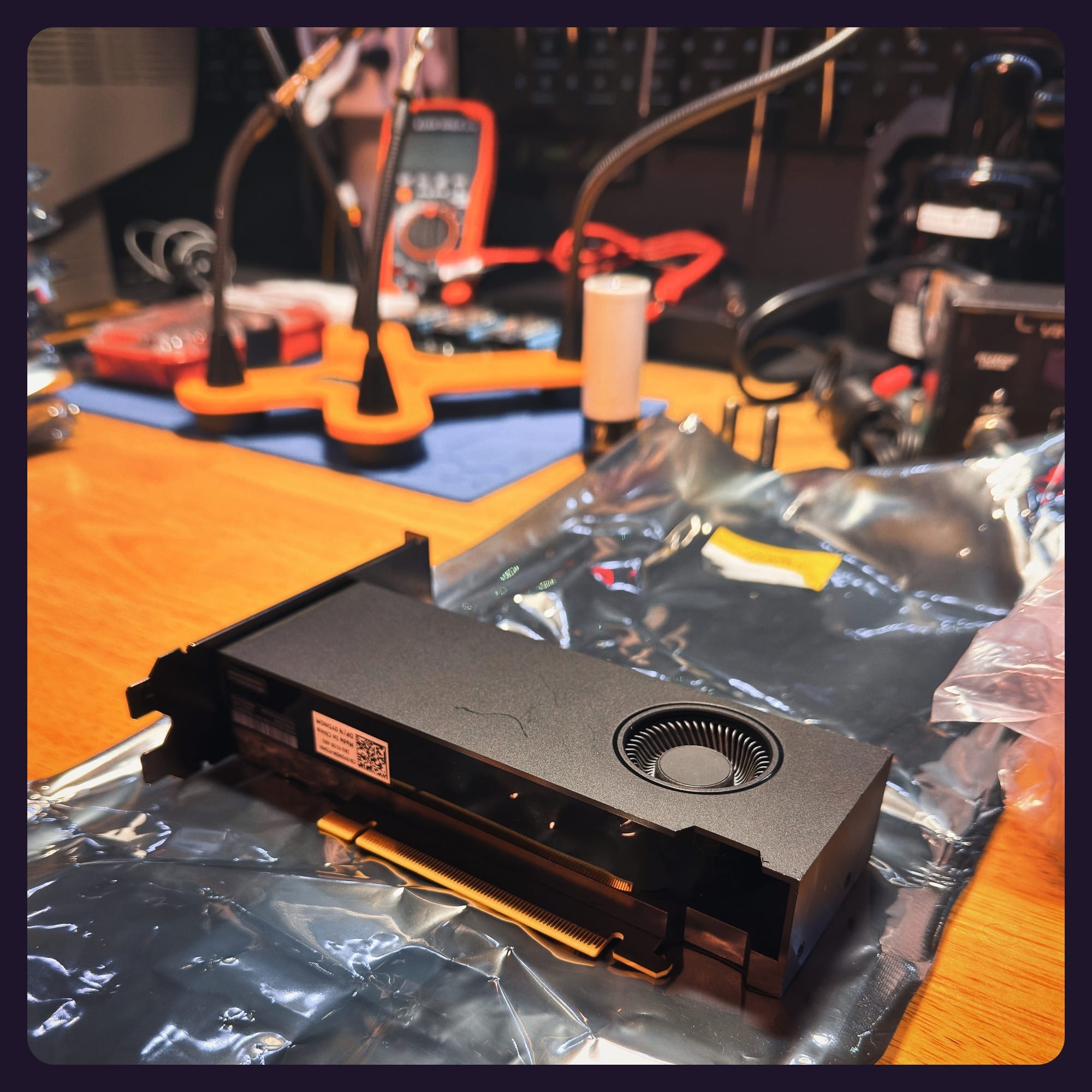
- GPU: Nvidia A2000 (Installed in Riser 2, x16 slot)
- Network: QLogic 10G Fibre Channel Card
The "Pivot": Rethinking Book Storage - Originally, I planned to boot Proxmox from dual SD cards in the internal IDSDM module. After some research, I scrapped that idea. Proxmox writes logs constantly, and it eats SD cards for breakfast. I moved the dual 400GV SAS SSDs to the rear flex bays to create a bulletproof ZFS Mirror for the OS.
Part 3: The Build Process (Wins & Fails)
Win #1: The HBA330 Discover
I was prepared to flash a PERC H730 RAID controller into "IT Mode" to get ZFS working. When I booted into the BIOS, I found a surprise: the server already had a Dell HBA330 Mini. This is the "Gold Standard" for software-defined storage. It doesn't do RAID; it just passes disks directly to the OS. No flashing, no hacking! Just pure ZFS goodness right out of the box.
Fail #1: The UEFI Nightmare
Since I installed a more modern GPU (RTX A2000) for Plex, I realized I needed to switch the server from BIOS (Legacy) to UEFI Mode for better PCIe passthrough support.
- The Crash: The server refused to PXE boot.
- The Realization: Remember that Unifi setting? I was pointing to the
.kpxefile (Legacy). UEFI systems physically cannot read that. - The Fix: I had to run back to my PC, open Unifi, and change the boot filename to
netboot.xyz.efi.
Fail #2: The 10G Timeout
This was the biggest headache of the night. I tried to PXE boot via the 10G Fibre Channel card.
- The Symptom:
PXE-E18: Server timeout./No Media Detected. - The Cause: UEFI is impatient. It tries to boot in 2 seconds. The 10G Fiber card + Switch takes about 5-10 seconds to negotiate the link. By the time the link was up, the bootloader had already quit.
- The Fix: I stopped fighting it. I found a spare copper ethernet cable, plugged it into the Integrated 1G Port, and bypassed the 10G card entirely for the install. Sometimes, the "dumb" solution is the best one. This isn't an issue with BIOS, though.
Fail #3: The Graphical Crash
Once netboot.xyz finally loaded, I launched the Proxmox Installer.
- The Result: A frozen grey screen.
- The Reason: The Linux kernel got confused by the presence of the Nvidia GPU and didn't know which video output to use for the GUI, I think.
- The Fix: I rebooted and selected "Proxmox Console (Text-Based Install)". It's not pretty, but it worked flawlessly.
Part 4: The Final Configuration
With the installer running in text mode, I locked in the final config:
- Target Disks: Selected only the two rear SAS SSDs (
sdm,sdn). That's how they show up in my system. - Filesystem:
ZFS RAID1with compressionon. - Network: Static IP assigned via the 1G port (for now).
It's Alive
The server rebooted, and I was greeted by the Proxmox login prompt after the install completed. I can now access the web UI from my desktop, and my Synology/Unifi PXE infrastructure is proven to work for both legacy and UEFI clients as long as I remember to swap the file names of netboot within Unifi. I need to think about automating this 🤔
What's Next?
- Expand Netboot: Look into adding more bootable OS' using netboot
- Automate Netboot File Switching: Address the need of manually swapping the netboot files in my Unifi device. This is only necessary if I plan to use old hardware and new hardware. I really like old hardware, though 😜
- 10G Config: Now that the OS is installed, I can configure the 10G Fibre card within Proxmox to reclaim my network speed.
- VM Deployment: Spin up the first few VMs and get that Nvidia A2000 transcoding for Plex!
I'm out! ✌🏽
No spam, no sharing to third party. Only you and me.

Member discussion